Creating and Managing Work Orders
Work orders are the core of Centro Access operations. This guide will help you effectively create and manage them.
Creating a Work Order
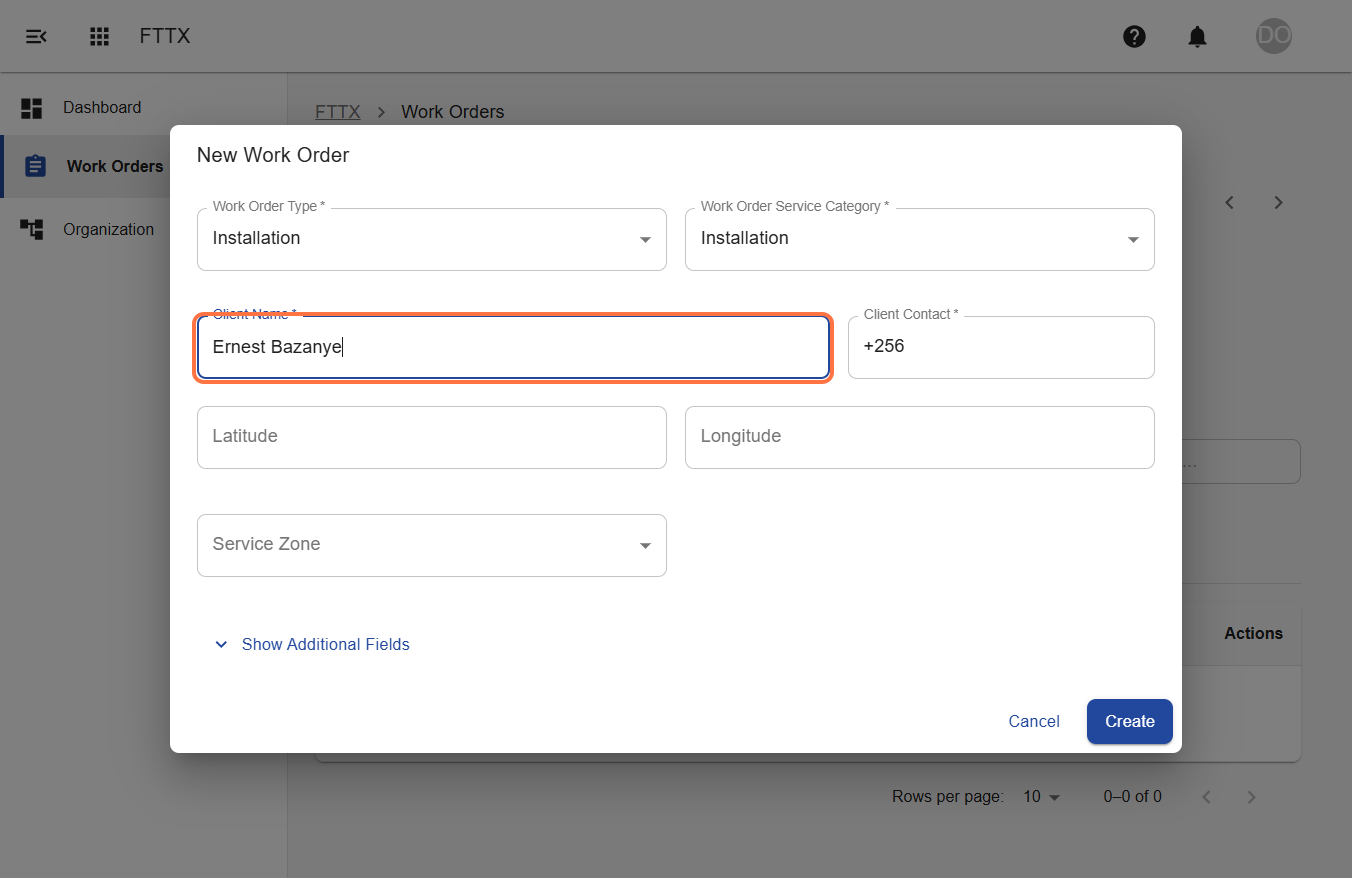
To create a new work order:
- Navigate to the "Work Orders" section from the FTTX main menu. Or use this link,
- Click the "New Work Order" button
- Fill in the required information:
- Customer details
- Service location
- Work order type
- Priority level
- Description of work required
- Attachments (optional)
- Scheduled date and time (optional)
- Assign the work order to a team or individual
- Set any SLA requirements
- Click "Create" to finalize the work order
Work Order Status Management
Every work order in Centro Access moves through a defined workflow:
- Created - Initial work order creation
- Assigned - Work order assigned to team/individual
- Scheduled - Appointment confirmed with customer
- In Progress - Work has begun
- On Hold - Work temporarily paused (requires reason)
- Completed - Work finished successfully
- Cancelled - Work order cancelled (requires reason)
To update a work order's status:
- Open the work order from the Work Orders list
- Click "Update Status"
- Select the appropriate status
- Add any required notes or documentation
- Save the changes
Managing Work Order Priorities
Centro Access allows you to manage work order priorities effectively:
- Critical - Requires immediate attention, affects service for multiple customers
- High - Urgent issue affecting service quality
- Medium - Standard work order, normal timeframes
- Low - Non-urgent task that can be scheduled flexibly
Priority levels can be adjusted as needed by users with appropriate permissions.
Work Order Analytics
Centro Access provides comprehensive analytics for work orders:
- Completion rates
- Average time to completion
- SLA compliance percentage
- Team performance metrics
- Work order type distribution
These analytics help you identify areas for improvement in your operations.
For additional information about work order creation, please visit our Work Order Guide.